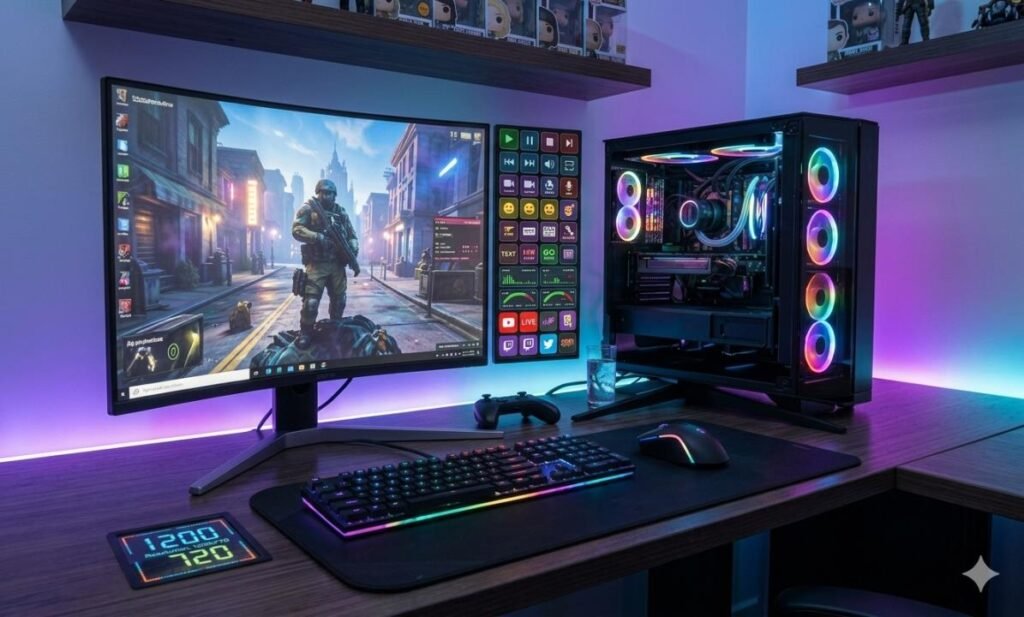

Windows 11 PC gaming refers to playing video games on Microsoft’s latest operating system, which is specifically optimized for modern gaming hardware and technologies. Unlike previous versions, Windows 11 is designed with gaming in mind, integrating advanced features like DirectStorage, Auto HDR, and DirectX 12 Ultimate at the system level. These technologies work together to improve load times, enhance graphics, and ensure smoother performance.
Why Gamers Are Switching to Windows 11 in 2026
In 2026, it is becoming the standard for gamers using modern hardware. One of the biggest reasons is faster game loading. With NVMe SSD support and DirectStorage, large game files can load significantly quicker compared to traditional systems.
While the raw FPS difference between Windows 10 and Windows 11 is often small, the overall system responsiveness, reduced background interruptions, and improved stability make Windows 11 a better long-term choice for gaming.
Key Features of Windows 11 for PC Gaming
DirectStorage is one of the most important advancements in Windows 11 PC gaming. It allows games to send data directly from an NVMe SSD to the GPU, bypassing the CPU. This reduces processing delays and significantly improves loading speeds. In real-world scenarios, this means faster level transitions, smoother open-world streaming, and less waiting time between gameplay segments.
Auto HDR for Better Visuals
Auto HDR automatically upgrades the lighting and color range of compatible games. Even if a game was not originally built with HDR support, Windows 11 can enhance it in real time. This results in brighter highlights, deeper shadows, and more realistic visuals, especially on HDR-capable monitors.
Xbox Game Pass Integration
Windows 11 PC gaming includes built-in access to Xbox Game Pass, which offers a large and constantly updated library of games. This makes it easier for gamers to discover and play new titles without purchasing each one individually. The integration also simplifies installation and updates, improving overall convenience.
Improved Gaming Performance & UI
Windows 11 features an updated interface that is cleaner and more responsive. Tools like Game Mode help prioritize gaming processes by limiting background activity. This ensures more consistent performance, especially during long gaming sessions or when running demanding titles.
Windows 11 vs Windows 10 for Gaming
When comparing Windows 11 PC gaming with Windows 10, most benchmarks show similar FPS results. However, Windows 11 provides better system-level optimizations that improve consistency and reduce performance drops. The real advantage appears when using newer technologies like DirectStorage, which are not fully utilized in older operating systems.
FPS Differences in Popular Games
In most games, FPS differences between Windows 10 and Windows 11 are minimal. For example, competitive games and AAA titles often perform within the same range on both systems. The deciding factor is usually hardware, not the operating system.
Compatibility and Driver Support
Windows 11 offers better support for modern drivers, GPUs, and CPUs. It is optimized for newer hardware, which helps ensure stability and performance in recently released games.
Which One Should You Choose?
If you are using modern hardware and want access to future gaming features, Windows 11 is the better choice. If your system is older or you rely on legacy applications, Windows 10 may still be sufficient for now.
System Requirements for Windows 11 PC Gaming

Windows 11 requires a 64-bit processor, 4GB RAM, 64GB storage, and TPM 2.0 support. These requirements allow the system to run but are not suitable for a good gaming experience. For smoothness, it is recommended to have at least 16GB RAM, a fast SSD (preferably NVMe), and a modern GPU that supports DirectX 12.
Best Hardware for Smooth Gameplay
To fully benefit from Windows 11 PC gaming, consider using:
- NVMe SSD for faster load times
- Dedicated GPU for high-quality graphics
- High-refresh-rate monitor for smoother gameplay
These components significantly improve both performance and visual experience.
How to Optimize Windows 11 for PC Gaming
Enable Game Mode, switch to high-performance power settings, and turn on hardware-accelerated GPU scheduling. These settings help allocate system resources more efficiently during gaming.
- How to Boost FPS on Windows 11: To boost FPS in it, lower in-game graphics settings, keep drivers updated, and avoid running unnecessary applications in the background.
- Disable Background Apps for Performance: Background apps consume CPU and RAM, which can reduce gaming performance. Disabling unnecessary programs helps maintain stable frame rates.
- Update Drivers and Graphics Settings: Regularly updating GPU drivers ensures better compatibility and improved performance. It also helps fix bugs and supports newer game optimizations.
Common Windows 11 PC Gaming Problems and Fixes
Low FPS is often caused by outdated drivers, high graphics settings, or background processes. Updating drivers and optimizing settings can significantly improve performance.
- Solve Game Stuttering and Lag: Stuttering can result from slow storage, overheating, or system overload. Using an SSD and monitoring system performance can reduce lag.
- Fix Game Crashes on Windows 11: Game crashes are usually linked to driver issues or software conflicts. Keeping the system updated and verifying game files can help resolve these problems.
Pros and Cons of Windows 11 PC Gaming
| Pros | Cons |
| Faster load times with modern SSD technology | Requires newer hardware |
| Enhanced visuals with Auto HDR | Minimal FPS difference vs Windows 10 |
| Better system optimization and UI | Some older games may have compatibility issues |
| Strong support for future gaming technologies | TPM 2.0 requirement |
Best Games to Play on Windows 11
- High-Performance AAA Games: AAA games with large environments and high graphics demands benefit the most from Windows 11 PC gaming features like DirectX 12 and fast storage.
- Casual and Indie Games: Indie games run efficiently and can benefit from visual enhancements, making them more enjoyable on modern displays.
- eSports Games for Competitive Players: Competitive games require stable performance and consistent frame rates. Windows 11 optimization helps maintain smooth gameplay during intense matches.
Tips for the Best Windows 11 Gaming Experience
To get the most out of it, keep your system updated to access the latest improvements. Use an SSD instead of an HDD for faster loading times and better responsiveness. Optimize in-game settings to balance performance and visuals. Monitor system temperature to prevent overheating and maintain consistent performance.
Final Verdict
Windows 11 PC gaming delivers a modern and optimized experience with improvements in load times, visuals, and system efficiency. While it does not dramatically increase FPS compared to Windows 10, it introduces important technologies that prepare your system for future games. If you have modern hardware, upgrading to Windows 11 is a smart choice. It offers better integration, smoother performance, and access to the latest gaming features.
FAQs About Windows 11 PC Gaming
Is Windows 11 better than Windows 10 for gaming?
Windows 11 offers better long-term support and advanced features, but FPS differences are usually small.
Does Windows 11 increase FPS?
In most cases, Windows 11 does not significantly increase FPS compared to Windows 10.
Is Windows 11 good for low-end PCs?
Windows 11 can run on low-end systems, but it is not ideal for gaming unless the hardware meets recommended specifications.
Do I need an SSD for Windows 11 PC gaming?
An SSD is highly recommended. It improves load times and allows features like DirectStorage to work effectively.