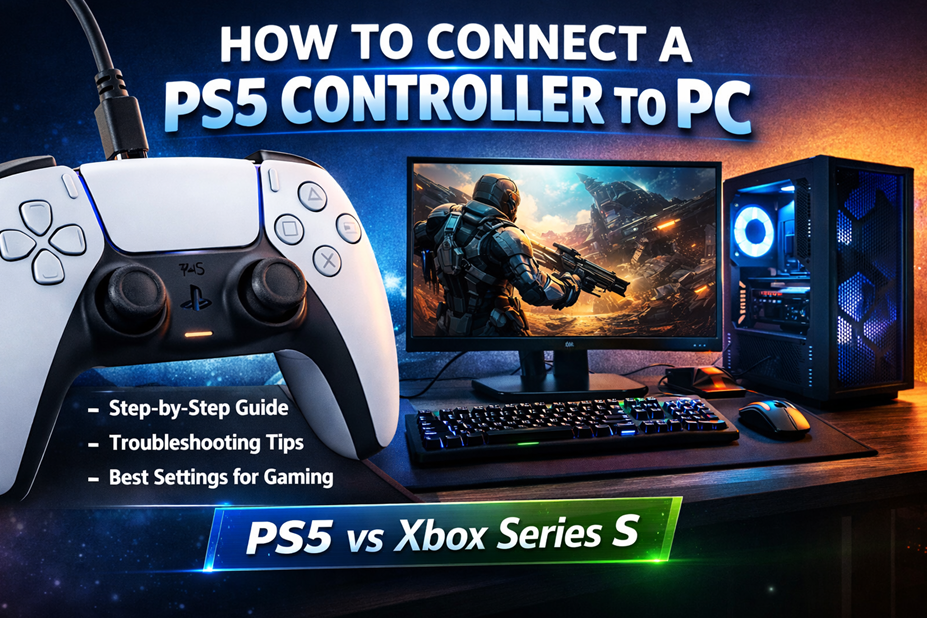

Want to use your PS5 controller on PC? The DualSense works perfectly on Windows 10 and Windows 11 using either a USB cable or Bluetooth. In this guide, you’ll learn exactly how to connect a PS5 controller to a PC, how to fix common problems, and how to get the best experience in Steam, Epic Games, and other games.
If you’re still deciding between consoles, you might also want to check out our detailed comparison of PS5 vs Xbox Series S before choosing your gaming setup.
Whether you’re playing modern PC games, emulators, or using Steam, this guide will walk you through everything step by step.
Does a PS5 Controller Work on PC?
Yes, the PS5 DualSense controller works on PC and is supported by Windows 10 and Windows 11 without requiring any special drivers in most cases. When connected, Windows recognizes the controller as a standard game controller device, which means it can be used in the majority of modern games that support controller input.
From a technical point of view, the DualSense communicates with the PC using standard USB and Bluetooth input protocols. This is why it works not only in modern AAA games, but also in older titles, indie games, and emulators.
Understanding PS5 Controller Compatibility With PC
What the PS5 DualSense Controller Is and How It Works on PC
The PS5 DualSense controller is a modern game controller that connects to devices using either a USB cable or Bluetooth wireless technology. On a PC, it is recognized as a standard game controller device, which means most modern operating systems can detect it automatically without requiring special drivers.
While the controller includes advanced features such as adaptive triggers and advanced vibration, not all PC games support these features natively. However, the basic functions such as analog sticks, buttons, triggers, and touchpad generally work in most modern games that support controllers.
From a technical standpoint, the controller communicates with the PC using standard input protocols. This allows it to work across a wide range of games, even if those games were not specifically designed for PlayStation hardware.
System Requirements and What You Need Before Connecting
Before connecting the PS5 controller to your PC, you should make sure your system meets a few basic requirements. Your PC should have a working USB port for wired connections or a functional Bluetooth adapter for wireless connections. Most modern laptops already include Bluetooth, while many desktop computers may require a separate adapter.
You will also need a compatible USB cable if you plan to connect the controller using a wired method. The controller uses a USB-C port, so the cable should have a USB-C connector on one end and a standard USB connector on the other, unless your PC supports USB-C directly.
In addition, your operating system should be up to date. Updated systems generally provide better controller support, improved Bluetooth stability, and fewer compatibility issues.
Wired vs Wireless Connection: Practical Differences
Both wired and wireless connections work well, but each method has its own advantages. A wired connection is usually more stable, does not rely on battery power, and is less likely to experience input lag or connection drops. It is also the easiest method to set up, since it usually works as soon as the cable is plugged in.
A wireless Bluetooth connection offers more freedom of movement and a cleaner setup without cables. However, it depends on the quality of your Bluetooth hardware and can sometimes be affected by interference or battery level.
The table below shows a practical comparison between the two methods.
| Connection Type | Main Advantages | Main Limitations |
| USB Wired | Very stable, no battery drain, simple setup | Requires cable, limited movement range |
| Bluetooth Wireless | No cable, more comfortable distance from PC | Uses battery, may have interference or pairing issues |
How to Connect a PS5 Controller to PC Using a USB Cable
Choosing the Right Cable and Preparing the Controller
To connect the controller using a wired method, you need a USB-C to USB cable or a USB-C to USB-C cable, depending on the ports available on your PC. The cable should be in good condition to avoid disconnections or charging issues.
Before connecting, make sure the controller is not already paired to another device nearby, such as a console or phone. While this usually does not prevent a wired connection from working, it can sometimes cause confusion if the controller tries to communicate wirelessly at the same time.
It is also a good idea to close any unnecessary background programs, especially those that manage input devices, to ensure a clean and simple first-time connection.
Step-by-Step Wired Connection Process
Start by plugging the USB-C end of the cable into the top of the controller. Then connect the other end of the cable to an available USB port on your PC. The controller should power on automatically, indicated by a light turning on.
Your operating system should detect the controller within a few seconds. In most cases, no additional setup is required. The system will install any necessary basic drivers automatically in the background.
Once the controller is detected, it is ready to be used in games that support controller input. You can usually confirm the connection by checking your system’s device or controller settings, where it should appear as a connected game controller.
What to Expect After the Controller Is Connected
After a successful wired connection, the controller will behave like any standard PC game controller. Most modern games will automatically recognize it and display controller button prompts, although some may show generic button labels.
The controller will also begin charging while it is connected, which means you do not need to worry about battery level during long gaming sessions when using a wired setup.
If a game does not respond to the controller right away, restarting the game usually solves the problem, as many games only check for connected controllers when they start.
How to Connect a PS5 Controller to PC Using Bluetooth
Checking and Preparing Your PC’s Bluetooth Capability
Before attempting a wireless connection, you should make sure your PC has working Bluetooth. Many laptops include built-in Bluetooth, while some desktop computers require a separate adapter. You can usually confirm this in your system’s device or wireless settings.
Bluetooth should be turned on and working properly before you begin. If your PC has trouble connecting to other Bluetooth devices, it is a good idea to resolve those issues first, as they may also affect the controller.
Wireless connections are more sensitive to interference, so placing the controller and PC relatively close to each other during the initial pairing process helps ensure a smooth setup.
Putting the Controller Into Pairing Mode
To connect the controller wirelessly, it must be placed into pairing mode. This is done by pressing and holding a specific combination of buttons until the light on the controller starts flashing in a pattern that indicates it is ready to pair.
While in this mode, the controller is actively searching for a device to connect to. It will remain in this state for a limited time, so you should have your PC’s Bluetooth pairing screen ready before starting this step.
If the controller does not enter pairing mode on the first try, releasing the buttons and trying again usually solves the problem.
Pairing the Controller With Your PC
Once the controller is in pairing mode, open your PC’s Bluetooth device menu and start searching for new devices. The controller should appear in the list of available devices within a few seconds.
Select the controller from the list and wait for the pairing process to complete. When the connection is successful, the controller’s light will change to indicate that it is connected.
At this point, the controller is ready to be used wirelessly in supported games. The connection should remain saved, so future connections are usually automatic as long as Bluetooth is enabled.
Configuring and Using the PS5 Controller in PC Games
How Games Detect and Use the Controller
Once the controller is connected, most modern PC games will automatically detect it as a standard game controller. In many cases, the game will immediately switch its input method from keyboard and mouse to controller and display appropriate button prompts on the screen.
Some games are designed with different controller types in mind and may show generic button labels instead of PlayStation-style labels. This does not affect functionality, but it can require a short adjustment period while you learn which on-screen prompt corresponds to which physical button.
If a game does not detect the controller, fully closing and restarting the game is often enough to fix the issue. Many games only scan for connected controllers during their startup process.
Adjusting In-Game Settings for Best Results
Many games include a dedicated controller or input settings menu. In this menu, you can usually adjust sensitivity, vibration strength, and button layout. These settings can make a significant difference in comfort and performance, especially in fast-paced or competitive games.
It is a good idea to check stick sensitivity and dead zone settings first. These control how responsive the analog sticks feel and can help eliminate unwanted movement or make aiming feel more precise.
If the game supports it, you can also customize button mappings to better match your personal preferences or to more closely match the layout you are used to from console gaming.
Understanding Feature Support on PC
While the controller includes advanced features such as adaptive triggers and advanced vibration, support for these features depends entirely on the game. Many PC games will only use basic vibration and standard trigger behavior.
This does not reduce the controller’s overall usefulness, but it is important to understand that the experience may not be identical to using the controller on a PlayStation console.
Even without full feature support, the controller remains a high-quality and comfortable input device for most types of PC games.
Troubleshooting Common Connection and Usage Problems
Controller Not Being Detected by the PC
If the controller is not detected at all, the first step is to check the connection method. For a wired connection, try a different USB port or a different cable. Faulty or low-quality cables are a common cause of detection issues.
For a wireless connection, make sure Bluetooth is turned on and working correctly. Turning Bluetooth off and back on again can sometimes reset the connection process and allow the controller to appear in the device list.
Restarting the PC can also help, especially if the system has not been rebooted in a long time or if other input devices have recently been installed or removed.
Connection Drops or Unstable Bluetooth Performance
Unstable wireless connections are usually caused by interference, low battery level, or weak Bluetooth hardware. Moving the controller and PC closer together can improve signal strength and stability.
Other wireless devices in the same area can sometimes interfere with Bluetooth signals. If possible, temporarily turning off unused wireless devices can help identify whether interference is the cause.
If the problem persists, using a wired connection is a reliable alternative that completely avoids wireless stability issues.
Buttons or Sticks Not Working Correctly in Games
If some buttons or sticks do not behave as expected, check the game’s input or controller settings first. The issue is often caused by an unusual button mapping or an incorrect input profile being selected.
Testing the controller in a different game can also help determine whether the problem is with the controller itself or with a specific game’s configuration.
In rare cases, disconnecting and reconnecting the controller, or removing it from the system’s device list and adding it again, can resolve persistent input problems.
Battery Management and Long-Term Use
Charging the Controller and Monitoring Battery Level
When connected by a USB cable, the controller charges automatically. This makes wired play sessions ideal for keeping the battery topped up without any extra effort.
When using the controller wirelessly, it is important to keep an eye on the battery level. A low battery can cause connection drops or input lag before the controller fully disconnects.
Developing the habit of plugging in the controller after longer wireless sessions helps ensure it is always ready for the next time you want to play.
Switching Between Wired and Wireless Use
You can freely switch between wired and wireless modes depending on your needs. Plugging in the cable will usually override the wireless connection and turn the controller into a wired device instantly.
When you unplug the cable, the controller can return to wireless use if Bluetooth is enabled and the pairing is still saved on your PC.
This flexibility allows you to choose the most convenient or reliable connection method for each situation without any complicated setup steps.
Maintaining Reliable Performance Over Time
Keeping your system updated helps ensure the best possible compatibility and performance with controllers and other input devices. System updates often include improvements to device handling and wireless stability.
Using good quality cables and avoiding physical stress on the controller’s ports and buttons will also help extend its lifespan and reliability.
With basic care and sensible usage, the controller can remain a dependable part of your PC gaming setup for many years.
Connecting a PS5 controller to a PC is a straightforward process that gives you a comfortable and versatile way to enjoy a wide range of games. Whether you choose a simple wired connection or the convenience of Bluetooth, the controller integrates well with modern systems and most games recognize it without difficulty. By understanding the connection methods, basic configuration options, and common troubleshooting steps, you can ensure a smooth and reliable experience every time you play.
Conclusion
The PS5 DualSense controller is an excellent choice for PC gaming. Whether you connect it using a USB cable for maximum stability or Bluetooth for convenience, it works well on Windows 10 and Windows 11 and is supported by most modern games.